Category Archives: printing

Photoshop – Straightening a Crooked Photo

Let’s face it. We’re not all expert photographers. Occasionally, a photo comes out a little more crooked than we’d like. You probably already know how useful Photoshop’s crop tool can be for trimming undesired elements from your photos, but did you know you can use it to straighten a crooked image, as well? Here’s how:
1.Select the Crop tool from the tools palette.
2.Click and drag the cursor across the portion of the image you wish to use.
3.Move your mouse outside the selected area. The cursor will turn into a double-sided arrow, connected by a curved line.
4.Press and hold down the mouse button (left mouse button on the PC) and move your mouse. The selected area of the photo will rotate in whatever direction you move.
5.Once you’ve rotated the selection enough to make up for the photo’s crookedness, release the mouse.
6.Press Enter, or double-click inside the selected area. The image will be cropped accordingly and rotated to bring it straight.

http://www.ParagonPress.net – #1 in Shreveport, LA for printing, design, direct mail, social media, marketing services – 318.868.3351

Right on Spot

We love color, and we know you do, too. While budgets don’t always allow for four-color work, two-color printing projects don’t have to look drab or dull. Adobe InDesign allows you to define a whole range of swatches based on any two ink colors, providing you with the options you need to make your project look great. So how do you go about using this feature?
Here are the steps to take:
  1. Open the Swatches palate and bring up its flyout menu. (Click the arrow in the upper right-hand corner to do this.)
  2. Select New Color Swatch.
  3. Create a color swatch for each of the colors you will be using in your design. (Choose Spot from the Color Type menu.)
  4. Once both swatches are created, go to the Swatches flyout menu again, and select New Mixed Ink Group.
  5. Click in the gray boxes to the left of your two swatches.
  6. Give each color an initial value (we recommend starting with 0%), a repeat value (equal to the number of steps you’d like the program to take to reach 100%), and the increment you’d like the value to rise with each of those steps. Keep in mind that the final percentage cannot exceed 100%. That means if you start with 0% and choose a repeat value of 10, your increments would have to be 10% or less. Or, if you start with 0% and choose a repeat value of 4, your increments could go as high as 25%.
  7. Once you’ve set your values for both ink colors, hit Preview Swatches. A list of swatch colors using varying percentages of each ink will then appear. Use these in your layout to add variations of color without worrying about adding another color of ink to the project.

www. ParagonPress.net – #1 in Shreveport, LA for printing, direct mail, design, social media, marketing services – 318.868.3351
Creating Photoshop “Actions”

So, you’ve used Photoshop for awhile now and are fairly adept at cropping, working with layers, changing colored photos to black-and-white and the like.
Have you ever had this happen? You tinkered around with a picture for awhile using Photoshop, and ended up with an image that was creative and different. The only problem is, you can’t remember how you arrived at that final look.
Actions
What you need to learn now is something called “Actions.” In Photoshop, an “Action” is a digitally written record of the steps you’ve taken to enhance or alter a photograph or image.
Some advantages to using Actions are:
  • you’ll save time and money
  • you can customize actions to fit certain workloads
  • you can share actions with others
  • you can make a hard copy of an Action you’ve developed, which can become a tutorial for you to use anytime
There is so much that can be done with Actions, it’s actually beyond the scope of what can be presented here. We’ll just touch on the basics.
To create an action, use the Actions palette.
The Actions palette is accessed one of two ways:
  • Use the menu command: select Windows > Actions or
  • Use the keyboard command: type Alt+F9 (Windows) or Opt+F9 (Mac)
This will open your Actions palette. The palette then becomes your best friend as you create a series of steps to alter a photo, make a record of those steps, save that record and then re-play those steps in the future to achieve the exact same effect with another photo.
Applying Actions to batches of photos
Not only can you alter an individual photo using Actions – you can alter large numbers of photos with Actions. And the beauty of it is, you don’t even have to be at your computer while this is happening.
To process a batch of images, first be sure that the action you want to use is loaded into the Actions palette. Then go to the Batch dialog box (File > Automate > Batch).
The Batch dialogue box contains four main areas:
Play. Choose the action you want to assign to the Batch command.
Source. Select the images or folders of images you want to alter.
Destination. Determine the destination for the images you’ll be processing.
Errors. Photoshop logs any errors that might occur during processing.
Some Action tips
Author Al Ward, Photoshop expert and self-proclaimed addict, suggests a few things to keep in mind as you set up your own actions.
  • Use as few displayed dialog boxes and stop messages as possible.
  • Establish color codes for your actions.
  • Keep the names of your actions as short and descriptive as possible.
  • Use keyboard shortcuts.
  • Save your actions frequently.
  • If you include a Save As command in an action that saves a file as a JPEG, be sure that the Save As Copy check box is checked in the Save As dialog box.

http://www.ParagonPress.net – #1 in Shreveport, LA for printing, direct mail, design, social media, marketing services – 318.868.3351

Fine Tuning Typography

The fine line between ordinary and extraordinary design lies in the details. While great attention to detail is placed on layout, often overlooked in document creation is the text itself. In the days of yore, professional typographers would peer over the printing press to ensure that the typeset was truly a work of art. Typographers would, quite literally, make certain that the “i”s were dotted and the “t”s were crossed.
While Typographers in the print shop may have fallen to the wayside, typographers at digital foundries take special care to craft highly functional pieces of digital type that can truly sparkle in the right hands. However, unless you know where they have hidden their tools, your electronic documents may be missing their finery. In Quark Express 8, the ability to bring out the best of typography are just a few quick clicks away.
Working With Special Characters.
What you see on your keyboard is just the start of what lays hidden within many fonts. Bullets, accented characters, monetary symbols, and much more lurk just beneath the surface. Some special characters even include multiple shapes for you to chose from to bring out the best in your document. These special characters can be found in the Glyphs pallet of the Windows Menu.
To add a special character, open up the Glyphs pallet in the Window menu, and then scroll to locate the character you would like to use. Double-click the glyph and it will be placed in your document. If you have a few glyphs you find yourself favoring, you may wish to save them in the Favorite Glyphs area at the bottom of the Glyph Pallet by dragging and dropping them into the open boxes.
Creating Fractions
While you can easily create fractions using numbers and a slash, the results can lack the refinement that actual fractions lend to a document. For a more polished approach, you can utilize QuarkXpress’ built in functionality to give your fractions the detail they so highly deserve.
To create your fraction, simply highlight your text, and chose Style > Type Style > Make Fraction. This will convert those unsightly displays of 1/ 2 and 1/ 4 into more elegant ½ and ¼. Even complex fractions can be expressed with a more refined appearance with just a few quick clicks of the mouse.
Applying Ligatures
Often times, certain combinations of letters can cause your type to look a bit more shabby then it could. Notoriously, “fl”s and “fi”s can become crowded with some typefaces. Ligatures are special glyphs that represent a character pair, and can help remove the awkwardness to those type combinations. Fonts can easily be substituted with ligatures automatically in QuarkXpress if you know where to look. Simply click on Enable Ligatures in the Character tab of the Measurements pallet.
Typography may no longer be the first thing you think of in document creation. But thanks to QuarkXpress 8, your documents can still have the look of “hands on” craftsmanship like that of the typesetters of old. With a little attention to detail and a little knowledge of QuarkXpress’ powerful tools, you can bring back the fine art of typography to your documents.

http://www.ParagonPress.net – #1 in Shreveport, LA for printing, direct mail, graphic design, social media, marketing services – 318.868.3351

Using Enriched Black Ink

When we think of colors, we often think of many different shades of each primary color. Take blue for example… it can vary between colors such as baby blue, aqua, turquoise, teal, royal blue, or navy blue.
Many people would assume that the one exception to these color variations is black. After all, we think of black as being absolute darkness, and expect it to appear this way when printed on a document as well. However, black that is used in full-color (process) printing is transparent, like all process inks, and cannot cover ink or paper as thoroughly as you may like.
Although using an opaque black ink may seem like a simple solution, it would cause adverse reactions to other color or high-res images that contain black ink. Instead, the wise choice would be to add various “enriched” process blacks to your color menus. Their use should vary according to how and where the black is applied.
Here are two types of enriched blacks to consider using:
  • Rich black. Rich black combines process black with one other process ink (traditionally 100% black and 60% cyan), which causes the black to appear “blacker” because the second ink color increases its density. Use rich black whenever the edges of a black object are fully exposed, or when a black object straddles other image information. And remember, it’s only appropriate for objects that are at least a quarter-inch thick.
  • Super black. By combining three process undercolors (50% cyan, 50% magenta, and 50% yellow), you can create the deepest, most satisfying process black you can reproduce on-press. Use super black only when all the object edges are within other colors, or when they bleed off the edge of the page.
Note: Because computer monitors cannot accurately duplicate printed results, the graphic illustrating the use of enriched black is meant only to give an approximation of the end result.

http://www.ParagonPress.net – #1 in Shreveport, LA for printing, direct mail, graphic design, marketing – 318-868-3351

Clearer Carbonless Forms

Did you know that carbonless paper ages? If you’ve ever used a carbonless form that doesn’t print very dark on the second or third sheets, the problem is most likely caused by old paper that contains dried-out micro ink capsules. You’d be interested to know that some of our competitors buy “old” carbonless paper on sale to lower their costs. We never do. We only purchase fresh carbonless paper!
Carbonless Form Production and Design Tips:
  1. Give yourself 1/2″ of white space at the top of any carbonless form. Occasionally, the padding compound that printers use will bleed down from the padding edge and cause the top 1/8″ of the paper to wrinkle slightly. White space makes it very hard to notice the wrinkling.
  2. Just because carbonless forms are practical doesn’t mean they have to be boring. Experiment with bold graphics to add pizzazz to your next project. In addition, two colors of ink can make a dramatic improvement in the appearance of carbonless forms, most of which are printed in black ink.
  3. Since many carbonless business forms are saved or filed for record keeping, why not consider designing the form so it includes three-hole drilling on the left side for those who want to archive their forms in three-ring binders?
  4. Consider shrink-wrapping the finished carbonless forms. They’ll look nicer and actually last longer.

http://www.ParagonPress.net – #1 in Shreveport, LA for FAST printing, direct mail, graphic design, marketing services – 318.868.3351

“Signatures” Could Save You Money

Of course, we aren’t talking about your autograph, but a printing concept.
As you may know, printing companies don’t always print documents in the one-page-per-sheet way that your office laser jet does. Instead, they may print several pages of material on a single, larger sheet (that’s called a press sheet) and then fold it and cut it to get the final finished page sizes.
What that means is that one large piece of paper coming off the press (before it’s folded and trimmed) could hold four, eight or more pages of material. That large piece of paper containing multiple finished pieces is called a “signature,” and the number of finished pages in one signature is called the “signature unit.”
The key to properly planning your multi-page documents is to think about the signature unit.If you have a project that is nine pages long and the signature unit is eight (meaning the signature contains eight finished pages),you would use two signatures: one signature for the first eight pages, and a second signature for that last (ninth) page. But if you were to do a little bit of editing to reduce your document page length to eight pages, you would only use one signature.
By being aware of the signature unit (the number of finished pages that can fit on a press sheet) required for your project, you can remove or add content so that your final product fits the signature, which reduces waste and saves you money.
For over 34 years, Paragon Press Shreveport has been #1 in printing, direct mail, graphic design, marketing services – http://www.ParagonPress.net – 318-868-3351

The Truth About Newsletters

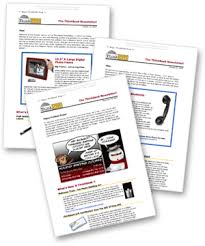
Newsletters are one of the most effective marketing and loyalty-building tools a business can use. We all know businesses that have produced their own in-house newsletters and have used them as powerful marketing resources for their company.

See full size image

Newsletters “connect” potential buyers to your business in a way that most conventional advertising never will. People love to read them! Providing your customers with a monthly newsletter is an easy to build loyalty, goodwill, and devotion to your company.

Here’s a list of three newsletter tips and ideas you might find helpful.

  1. Think about your content. Generally, the most popular newsletters don’t contain a lot of industry-specific, technical copy. This can seem boring and self-serving to your readers. It’s better to provide interesting articles that will appeal to most people. Use a strong nameplate masthead and a few display ads in your newsletter to “sell” your products or services.
  2. Newsletters increase customer loyalty, so your mailing list should include customers as well as prospects that you would like to develop into customers.
  3. Lastly, newsletters don’t have to be expensive. Paragon Press can offer several different printing options. You might start with a simple, inexpensive, one-color newsletter, and progress to two-color and full-color as your newsletter’s popularity increases.

Newsletters can help your business muscle through the mail stack with your company’s selling message. If you’d like the phone to ring more, we’ll help you make it happen with newsletters.

www.ParagonPress.net – #1 in Shreveport, LA for printing, direct mail, graphic design, marketing – 318.868.3351

Signatures Could Save You Money

Of course, we aren’t talking about your autograph, but a printing concept. As you may know, printing companies don’t always print documents in the one-page-per-sheet way that your office laser jet does. Instead, they may print several pages of material one a single, larger sheet (that’s called a press sheet) and then fold it and cut it to get the final finished page sizes.
What that means is that one large piece of paper coming off the press (before it’s folded and trimmed) could hold four, eight or more pages of material. That large piece of paper containing multiple finished pieces is called a “signature,” and the number of finished pages in one signature is called the “signature unit.”
The key to properly planning your multi-page documents is to think about the signature unit.If you have a project that is nine pages long and the signature unit is eight (meaning the signature contains eight finished pages),you would use two signatures: one signature for the first eight pages, and a second signature for that last (ninth) page. But if you were to do a little bit of editing to reduce your document page length to eight pages, you would only use one signature.
By being aware of the signature unit (the number of finished pages that can fit on a press sheet) required for your project, you can remove or add content so that your final product fits the signature, which reduces waste and saves you money.

http://www.ParagonPress.net – #1 in Shreveport, LA for printing, direct mail, graphic design, marketing – 318.868.3351

POSTCARDS – Simple Yet Effective Marketing

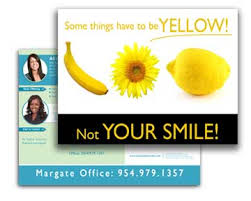
ostcard marketing remains one of the most cost-effective means of getting your name and message in front of prospective buyers. With a postcard, you can target your message to only those customers and prospects who are most likely to want your services.

See full size image

Postcards can come in a variety of sizes. Standard-sized postcards offer just the right amount of space for your message. Jumbo postcards are an effective way to spread your message because they stand out, get attention, and offer more space for your important messages.

Here are some more great reasons why postcards should be included in your marketing plan:

  • Postcards are CONVENIENT. Your message is right in front of your customers. They can read your offer and find out about a sale without having to open an envelope. in addition, they are able to refer back to your postcard at any time, and save it for future reference.
  • They’re INEXPENSIVE. Printing costs for postcards are small, considering the large impact they can have on buyers.
  • They’re EASY TO TEST. Because they’re so inexpensive, postcards are a great medium for testing the effectiveness of your messaging. Start by sending postcards to a small sampling of your mailing list. When you’re satisfied with the results, have more printed and spread out from there.
  • They’re EASY TO TRACK. Especially if you include a coupon or special offer on the card.
  • They make a LASTING IMPRESSION. How many TV or newspaper ads do you remember after just one viewing? The reason we forget most conventional ads is because they’re a distraction, not the main focus of our attention. A jumbo postcard has staying power. It leaves a more lasting impression because of its size, its content (especially if it includes a coupon or special offer), and its simplicity.

See full size image

Contact us today about printing postcards for your company!

http://www.ParagonPress.net – #1 in Shreveport, LA for printing, direct mail, graphic design, marketing services – 318.868.3351